
How to Draw on a Video Frame for Feedback
Pause where the issue is visible, select Annotate beside the comment box, and mark the spot on the frame. Add one sentence that tells the editor what to change.
Add a drawing to a timed comment
Pause where the problem is visible
Pause on the first frame where the problem is clear. If the issue only appears during motion, add a time range or note how long it lasts.
Mark the area
Select Annotate beside the comment box, then choose a drawing tool. Circle or point to the part of the frame that needs attention.
Add a brief direction
Name the change and why it matters, then post the comment with the drawing.
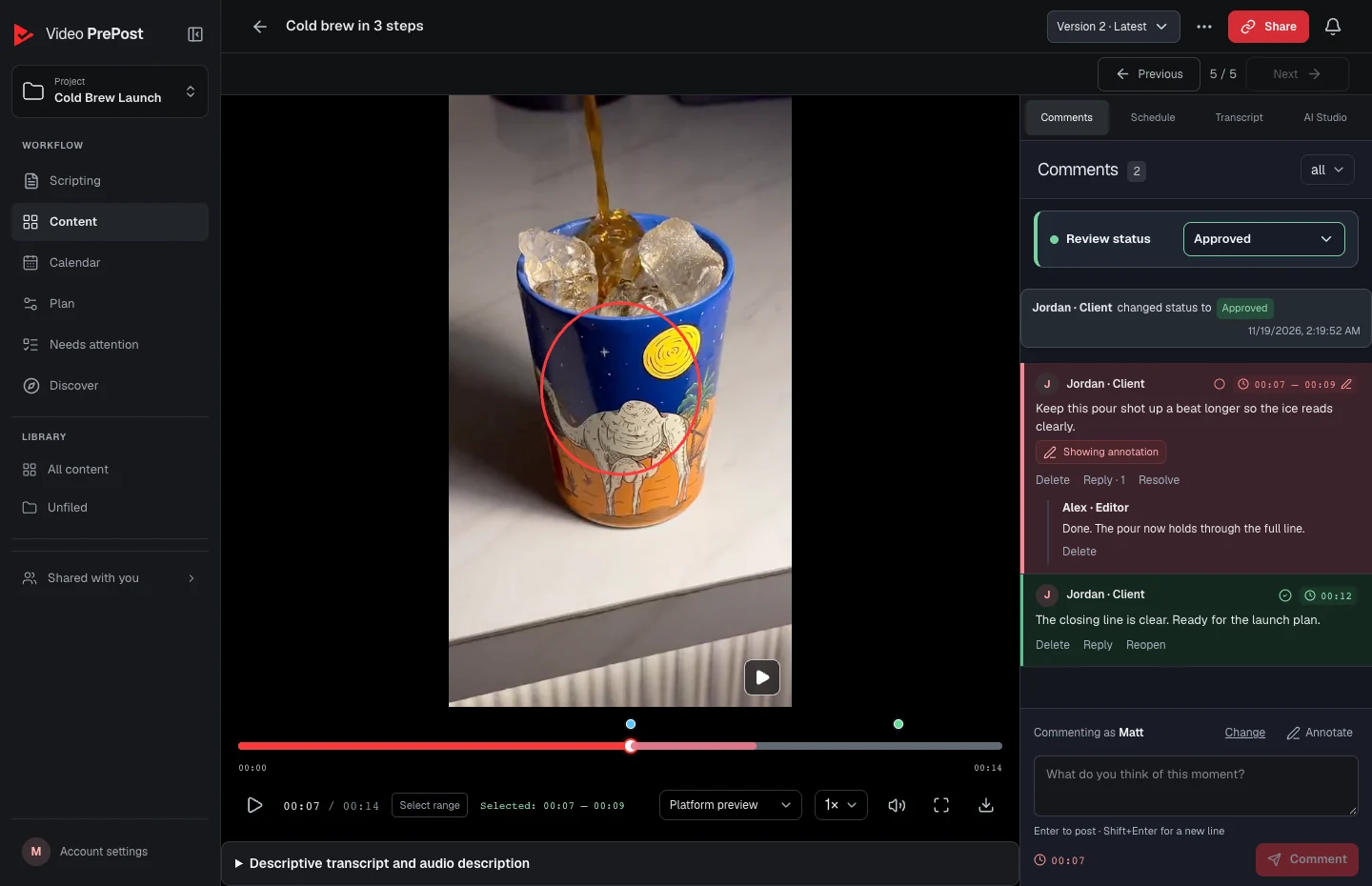
Call attention to the part of the pour to keep
Circle the glass so the editor can distinguish the product shot from the person’s hand. Ask to hold that portion of the shot through the instruction about ice.
Use a drawing when placement matters
Drawing tools add a visual annotation over a paused video frame. The drawing stays with the timed comment, so the person fixing it can see what the reviewer was pointing at.
Visual notes are particularly useful for designers and video editors working with several elements in the same frame. Pointing to the exact area saves an exchange about which object needs moving.