
How to Review a Generated Video Script Before Filming
Generate a video script in Scripting, send the script packet for review, and share the link with your client. They can mark up the PDF and comment on specific pages, so you can settle wording and shot changes before you film.
Generate a script and get client feedback
Script generation and sending script packets are currently available in the owner preview. Clients can use the shared link to leave feedback when comments are enabled.
Generate and prepare the script
In your project’s Scripting area, generate a draft and edit the wording. Approve the draft, add it to a filming batch, and open the script packet.
Share the script with the client
In the packet, choose Send for review and select a project folder. When the script opens, select Share and copy the review link. Ask the client to mark up the relevant page or leave a comment.
Send the revised script for sign-off
Make the changes in the linked script and choose Update review PDF to create a new version. Share the same review link and confirm which version the crew should film.
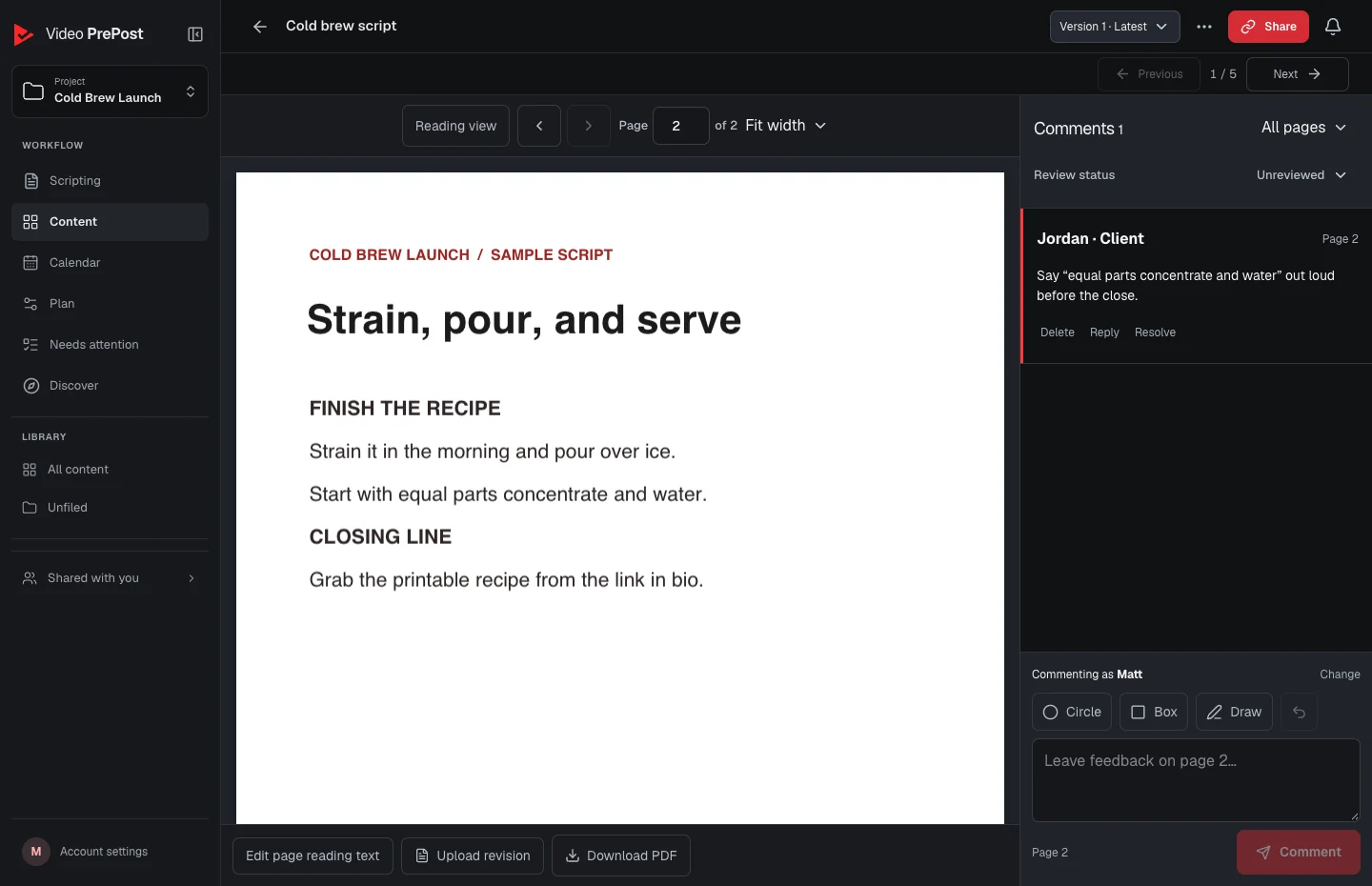
Fix a recipe line before recording
On page two, the client asks for the presenter to say “equal parts concentrate and water” out loud. Update that line before recording the closing shot and send the revision back through the same review.
Make decisions about wording before the shoot
Scripting keeps the generated draft editable while clients see a PDF of the version you shared. They can draw on the page or leave a comment in their browser. The review history keeps each version with its feedback.
Scriptwriters, producers, and clients can settle word choice, claims, offers, and shot requirements before anyone records. Fixing an unclear line now can save a second shoot later.