
How to Save a Reusable Social Graphic Template
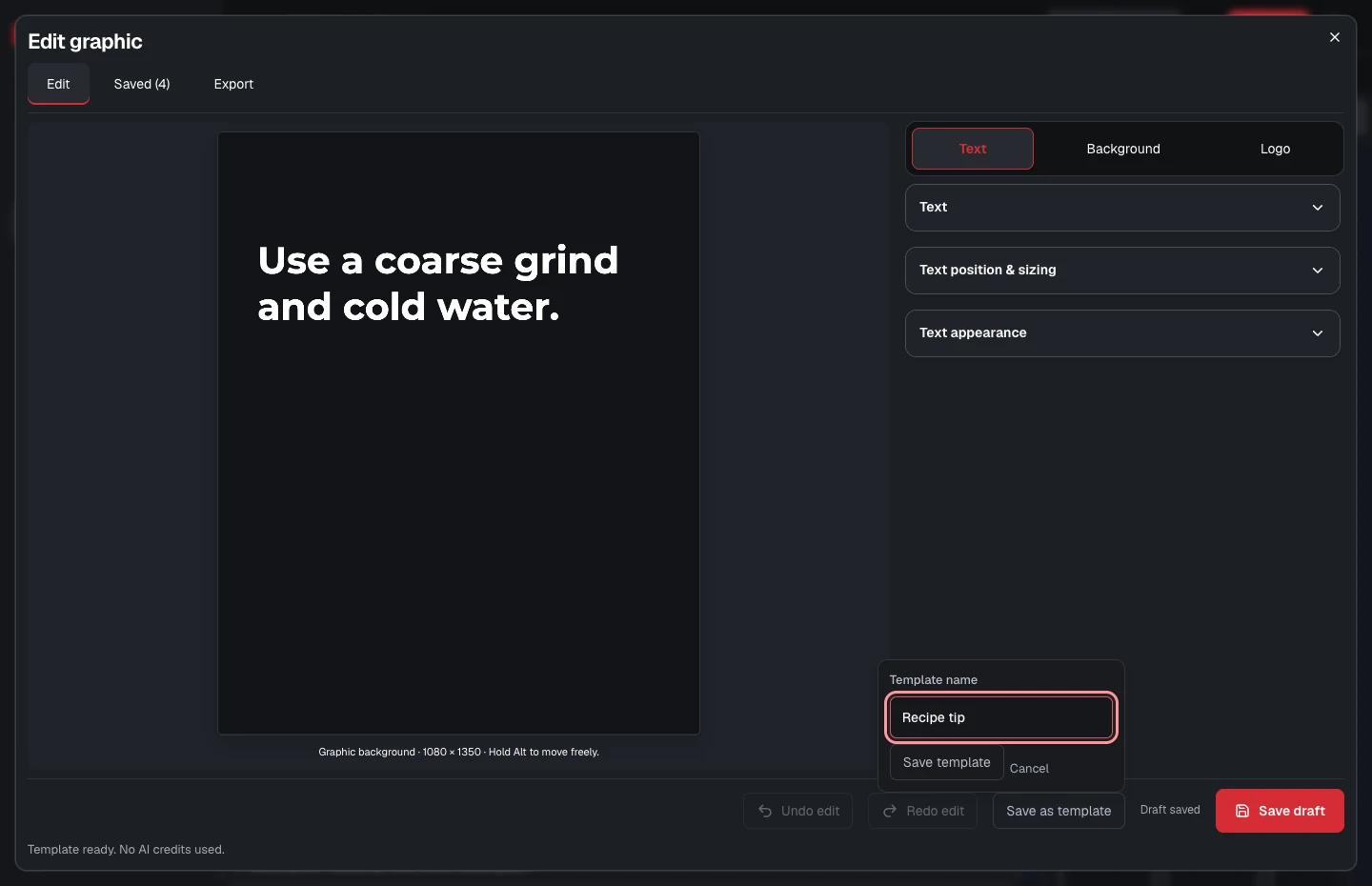
Open a graphic with a layout you’d use again and choose Save as template. Give it a name your team will recognize and find it in My templates when you start the next design.
Save and reuse a graphic layout
Finish a representative design
Start with a post that has already been checked and that matches the kinds of graphics you make repeatedly.
Save it as a template
Choose Save as template. Enter a name such as Recipe tip, then choose Save template.
Use it on a fresh post
Open the template library and select My templates. Replace content and check the layout at small size before review.
Keep a consistent recipe-card series
Save the cold-brew design as Recipe tip. Use it again for the next coffee tip and change the photo and exact line for that post.
Keep the recurring parts of a series consistent
My templates lets you save a design you use regularly. Start the next graphic or carousel from the saved visual structure and adapt the copy and images to the new post.
A reusable layout helps a series feel consistent and reduces design setup. It is especially handy when a team has already approved the typography, colors, and placement.