
How to Set a Weekly Posting Rhythm for Video
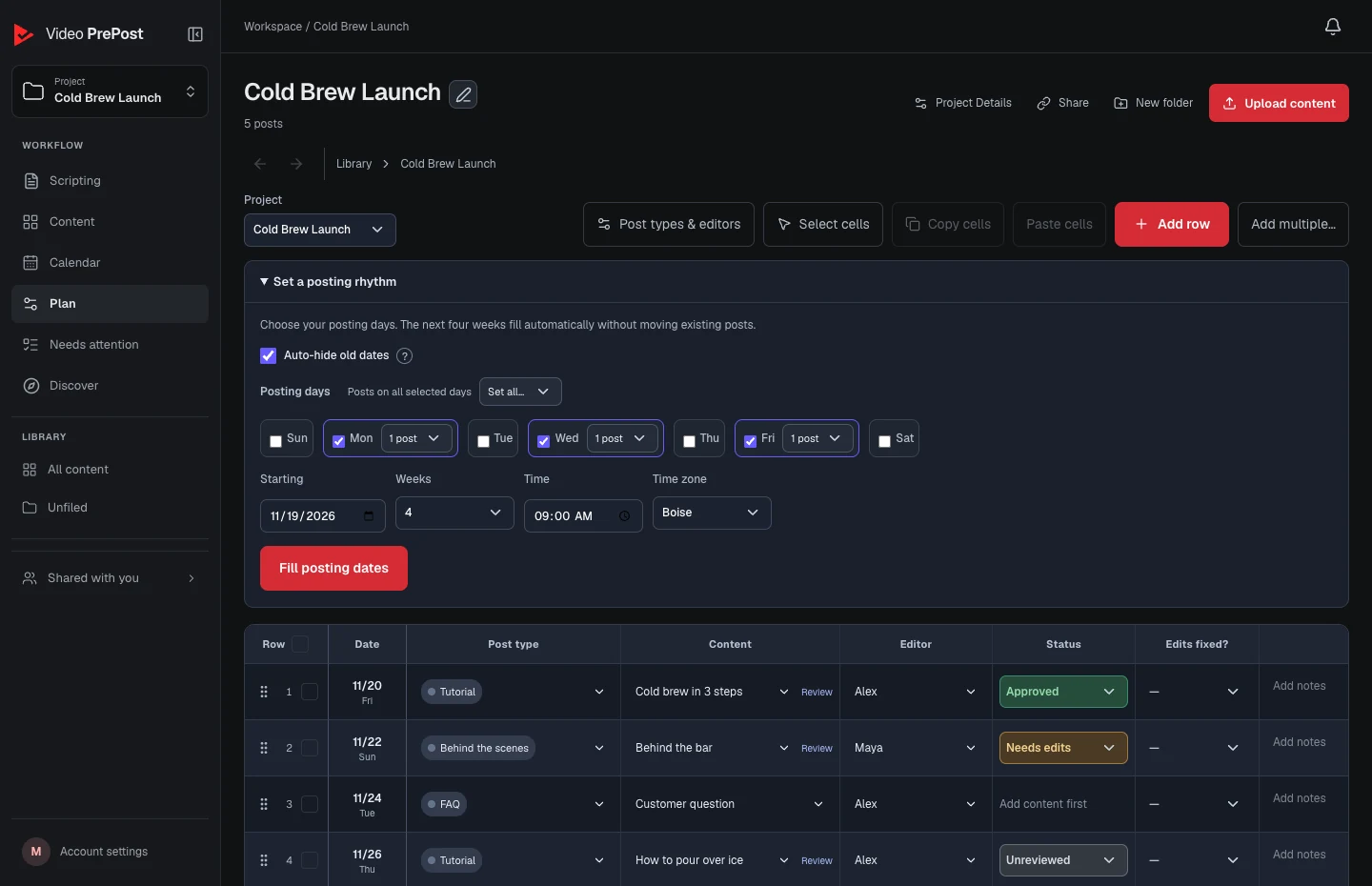
In Plan, open Set a posting rhythm and choose your recurring days, time, and time zone. Check the slots it creates over the next four weeks before assigning content.
Fill your next four weeks of posting slots
Open Set a posting rhythm
In Plan, expand the posting rhythm controls for the right project.
Choose your days and time
Start with the number of posts you can consistently finish. Check the timezone and the time used for the new slots.
Check the weeks that fill
Review the next four weeks and add working titles or attach media. Leave exceptional events on their specific dates.
Make a Monday, Wednesday, Friday plan
Set three weekly slots for the recipe series, then use a custom date for a one-off Saturday tasting. The team can fill the repeating slots as filming and editing progress.
Set a cadence your review team can keep up with
The posting rhythm fills future Plan slots based on a chosen schedule. Existing posts retain their dates, so you can use recurring slots alongside special campaigns.
A recurring schedule gives small teams a practical baseline for deciding how many ideas to script and record. It also helps account for how much review work the team can handle.