
How to Build a Video Content Calendar
Start with the posting dates you can realistically meet, then attach each video and check its review status. Use a Plan row for an idea that has no file yet.
Build a weekly video calendar
A date in Calendar represents your posting plan. Check your publishing workflow for the actual send or upload.
Start with three slots
Give the week a mix of useful content, behind-the-scenes footage, and an audience question. Set realistic dates based on when the edits can be reviewed.
Add the media you have
Open Calendar in the project. Drag ready items from Unscheduled content onto dates. Create future slots in Plan if the assets are still ideas.
Check what still needs a decision
Use the Unreviewed content queue and review statuses to see what to follow up on before the week starts.
Share the plan
Send the project calendar link to the people who need to see the dates and review next steps.
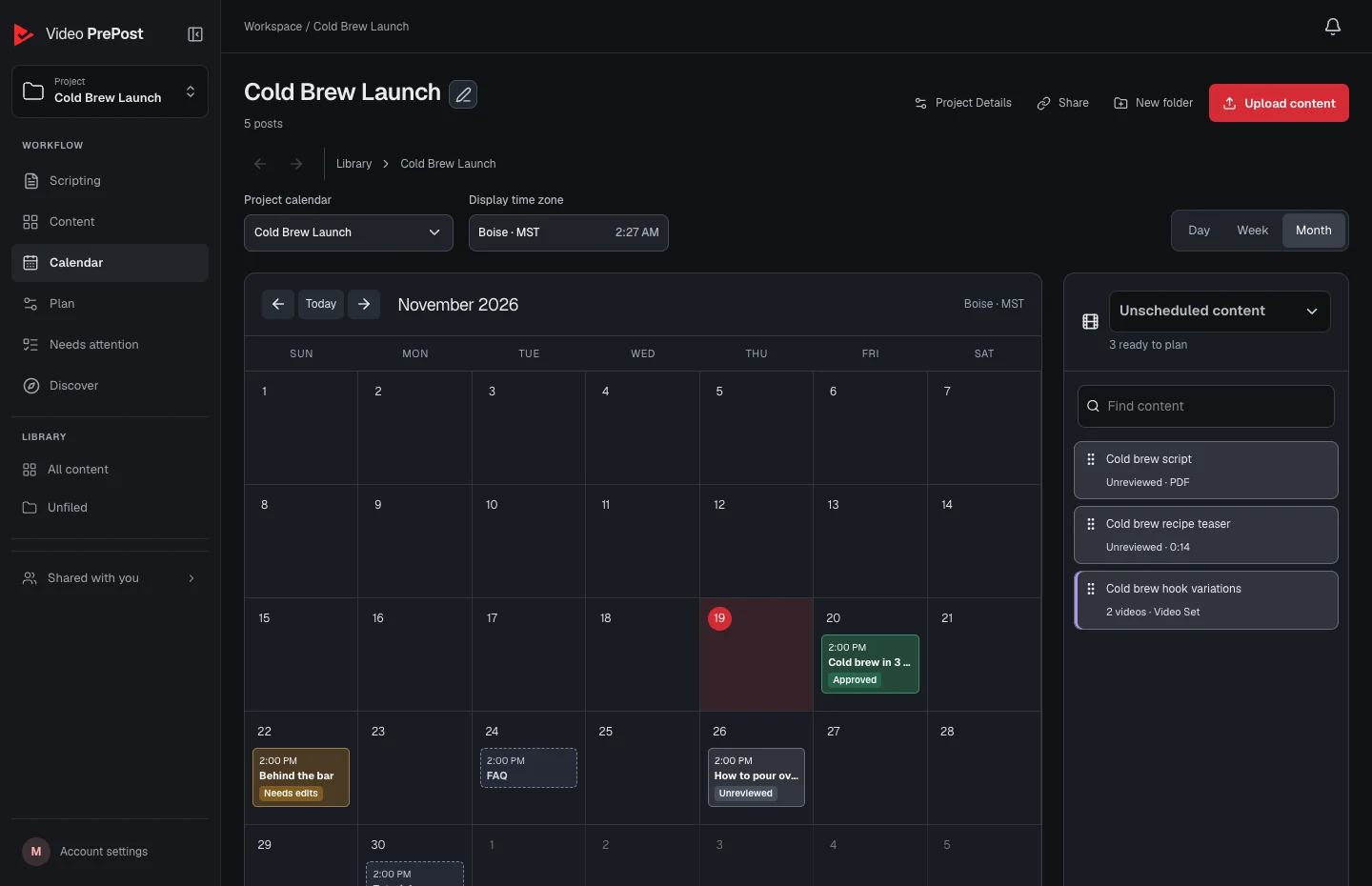
A three-post week you can copy
The recipe video makes the core promise. A process clip adds variety, and an FAQ gives people a reason to save the post. Attach each asset as it is ready.
Monday · Recipe tutorial · Alex · Approved Wednesday · Behind the bar · Maya · Needs edits Friday · How to dilute cold brew · Alex · Planned
Use review status to spot deadlines at risk
Calendar shows your videos and graphics on the days you plan to post them. It connects dates to the actual media and review status. Ideas that need more details can start as rows in Plan and appear on the calendar too.
A creator or social team can see whether next week has a good mix of posts, which edits are still open, and whether there is a backup if a video misses its deadline. Planning the week visually also makes timing decisions easier to discuss with a client.