
How to Move Video Posts on a Drag-and-Drop Calendar
Open Calendar and drag the video card to its new day. Verify the date, local time, and review status after the drop. On a touch device, open the card to choose a date.
Move a post and verify its new date
Open the project calendar
Go to Calendar and choose the project and intended month.
Drag or choose a day
Drag the item from the queue onto the target date, or move an existing card to a different day. You can also open the card to choose a date.
Confirm the posting details
If the drop opens the posting details, save the proposed date there. Then verify that the card appears on the new day and that the time and review status still match.
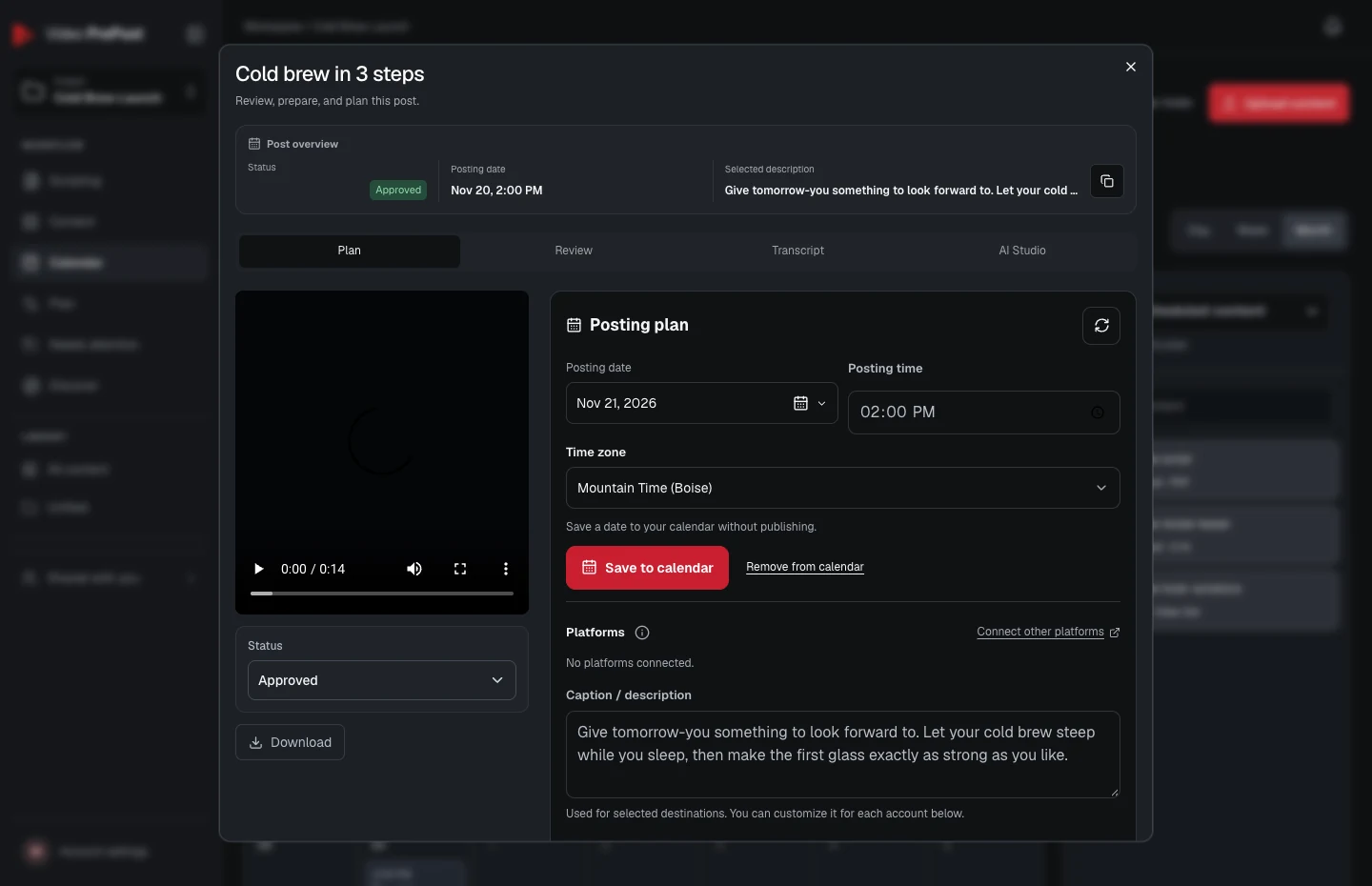
Move an approved tutorial to Saturday
The shop decides to release the recipe tutorial on Saturday. Drag its Friday card to Saturday and confirm the new day in the posting details. Check that its approval still appears before sharing the updated plan.
Keep the decision and the video together
Calendar lets you drag a video or an existing post card to a date. The change updates the planned posting slot so Calendar and Plan reflect the same date.
Social coordinators often adjust the week after a client pushes back a deadline. Moving the existing card keeps the content and its status attached to the new date.