
How to Write a Social Media Caption From a Video
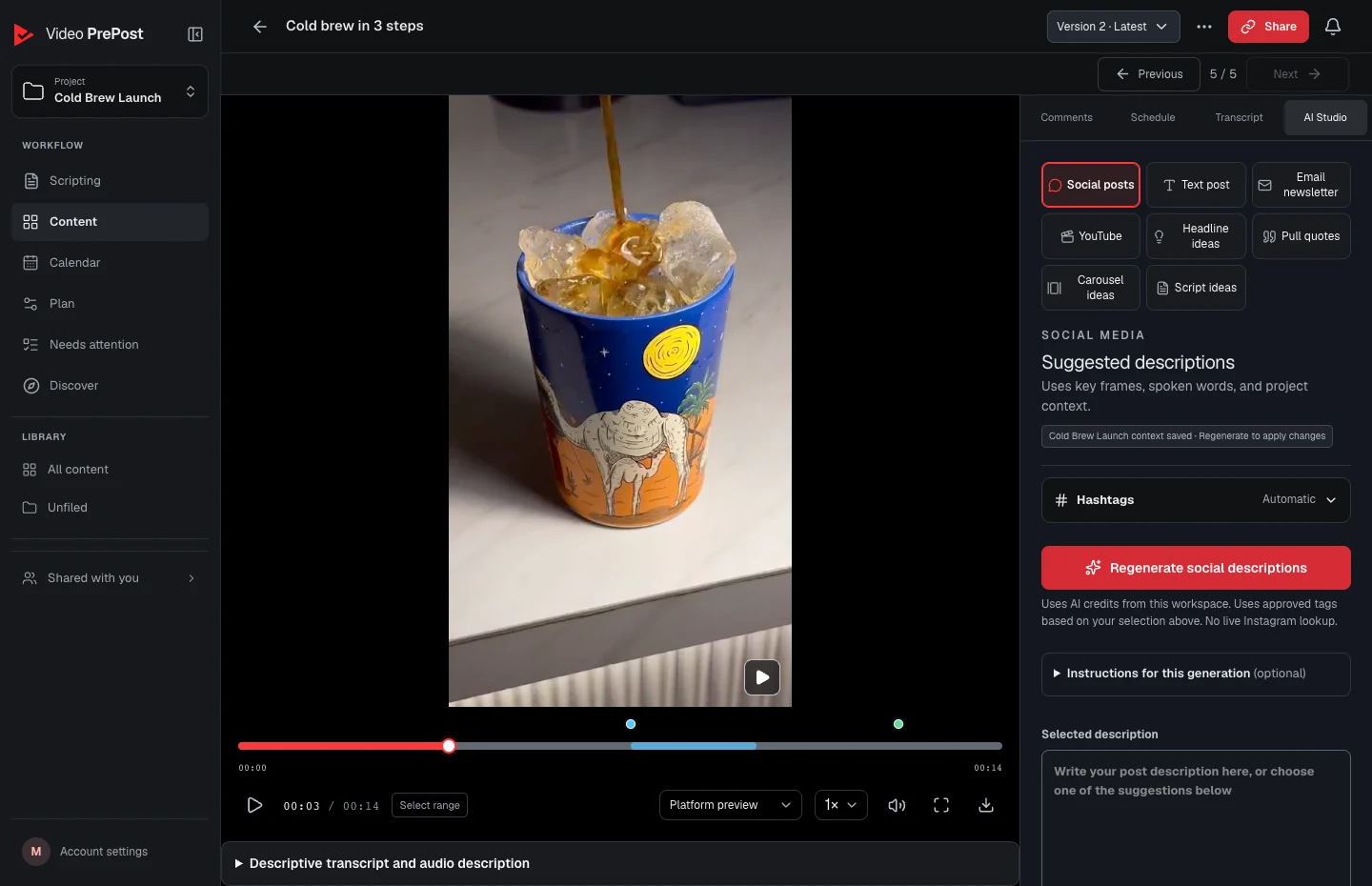
Open AI Studio → Social posts. Tell it who you’re writing for and what the first line should deliver, then choose a tone and edit the caption before copying it.
Draft a caption from the source video
Check the source
Open the final video and correct the transcript where needed.
Give a specific brief
Open AI Studio and select Social posts. Tell the tool who the caption is for, what to lead with, and how long it should be.
Edit before copying
Click Use this on the tone you want and tighten the first line in Selected description. Confirm every detail, then add or remove hashtags and the call to action as appropriate.
Lead with the takeaway, then show the method
The cold-brew video starts with a pour. The written caption can start with the useful instruction that makes the visuals worth watching.
Tomorrow’s iced coffee starts tonight. Steep coarse-ground coffee in cold water, then strain it in the morning. Save this for your next batch.
Give people something useful before they press play
The Social posts tool uses the video to draft post descriptions. It gives you Professional, Casual, and Playful options and a place to give direction for the result.
A social creator can turn spoken language into copy that stands on its own when someone reads the post before pressing play. An editable draft gives the team a concrete piece to review.