
How to Find Unscheduled Videos in Your Content Calendar
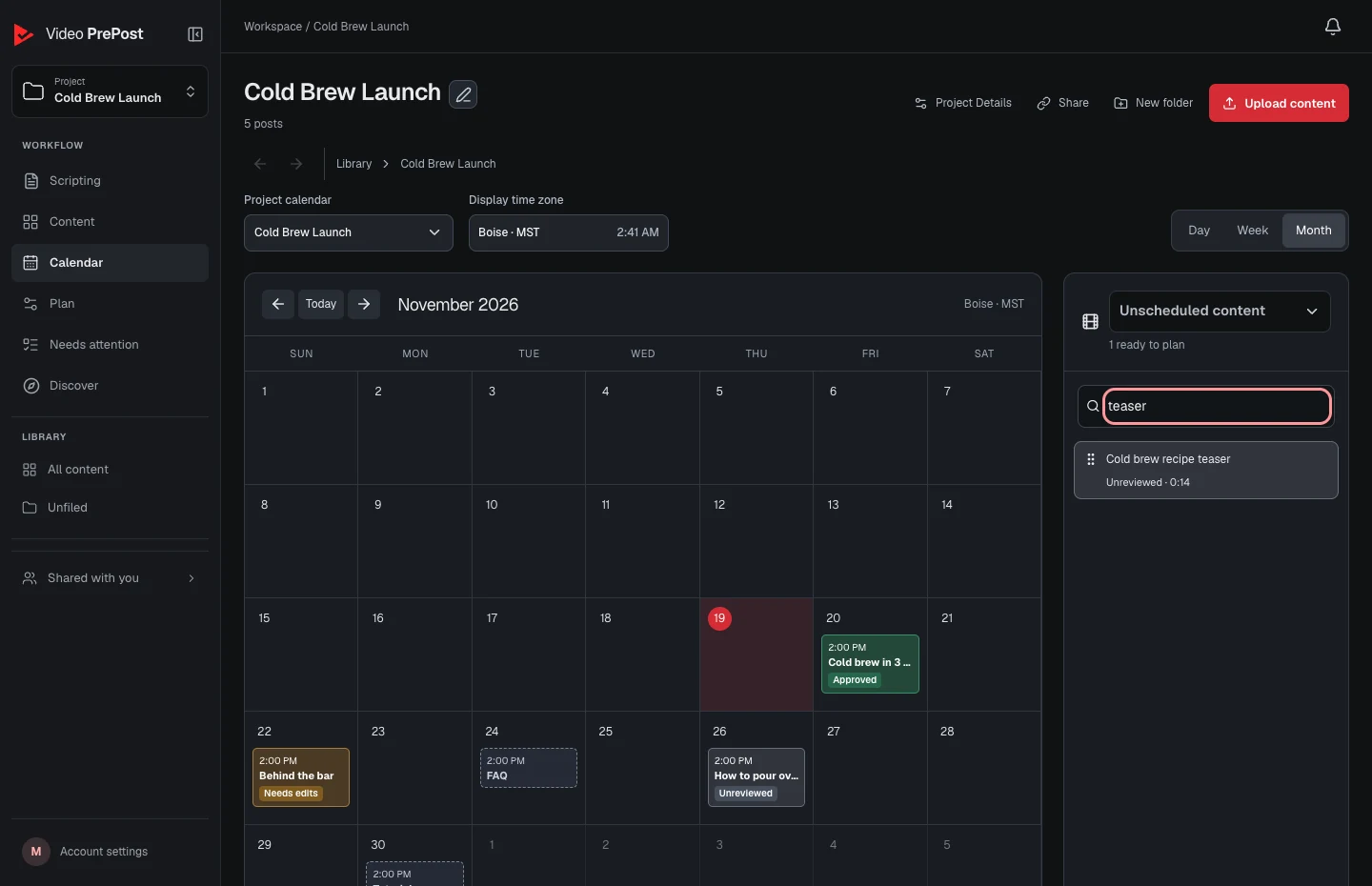
In the Calendar sidebar, switch the content list to Unscheduled content. Search by title, check the item’s review status, and give it a posting date when it’s ready.
Find a video without a posting date
Choose the project
Open Calendar for the client or campaign you are planning.
Open the Unscheduled content queue
Set Calendar content list to Unscheduled content. In Find content, search for a distinctive word such as “teaser.”
Check the status and place it
Pick a video in the right review state, then drag it to an open date or open it to set a date.
Find a backup for a suddenly open slot
A launch tease was filmed in the same batch as the main recipe. Look for Recipe teaser in Unscheduled content, check whether it has approval, and give it a date once it is ready.
Keep a few ready-to-use posts in reach
Unscheduled content narrows the Calendar queue to media without a planned posting date. Search the queue if you remember part of a filename or title.
For a creator batching work ahead of time, an approved reel can disappear in the content library. The queue gives it a second place to surface when the calendar has a gap.