
How to Make a YouTube Thumbnail From a Video
Open AI Studio → YouTube → Thumbnail, choose a layout, and replace the sample image with a video frame or your own photo. Check it at feed size before exporting the JPG.
Build and export a YouTube thumbnail
Decide what the viewer should notice
Identify the frame, object, or contrast that communicates the outcome of the video.
Model the composition
In AI Studio, open YouTube and choose Thumbnail. Select a template and skim its reference. Choose Select frame to pick a moment in the video or upload a photo. If your layout has two sides, check the crop on each one.
Check it at feed size
Adjust the crop and shorter text so the subject reads quickly. Save and export the JPG when it fits the title and video.
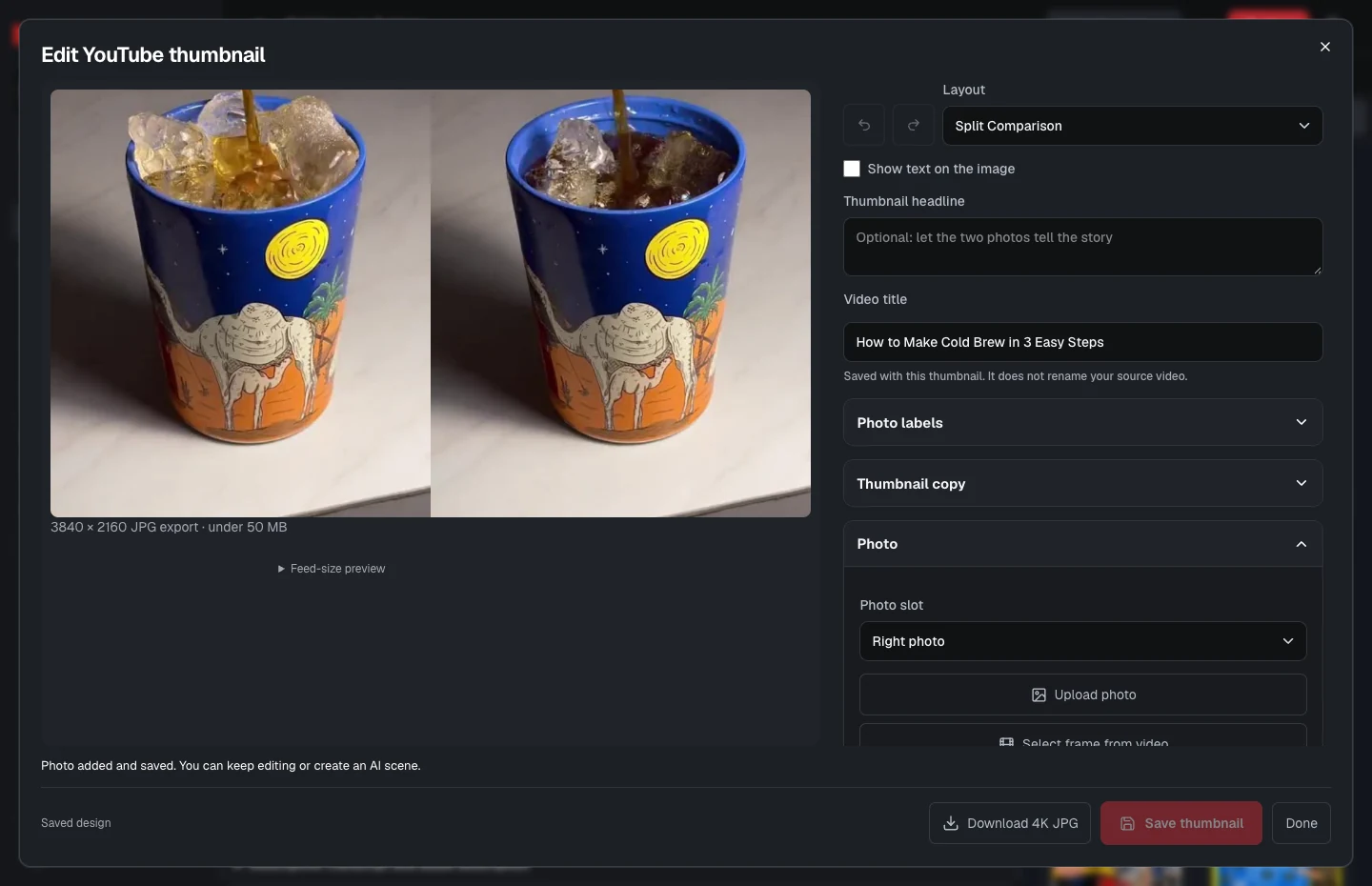
Adapt a split comparison to a recipe video
Use a matching crop of dark concentrate on one side and the finished glass over ice on the other. That comparison previews the change people will learn to make. A simple title can handle the how-to wording.
Choose a visual people can understand at a glance
The YouTube thumbnail editor lets you use a frame or upload a photo, choose an editable layout, and customize the crop, text, and colors. The template library documents references for its research-backed examples.
A repeatable visual pattern helps a creator get to a first draft. For example, a split comparison gives the viewer two clear things to compare. A dated reference can inspire the composition, while your own click-through and viewing data tell you how it performs.